






































UPDATE: As Microsoft officially ends support for Windows 10, users are scrambling for immediate solutions to enhance their aging systems. With many still reliant on this operating system due to hardware limitations or critical software compatibility, the urgency to optimize performance has never been greater.
Microsoft’s decision to cease updates for Windows 10 means users can make permanent tweaks without worrying about automatic resets. Here are six essential adjustments that can significantly improve your computer’s efficiency right now.
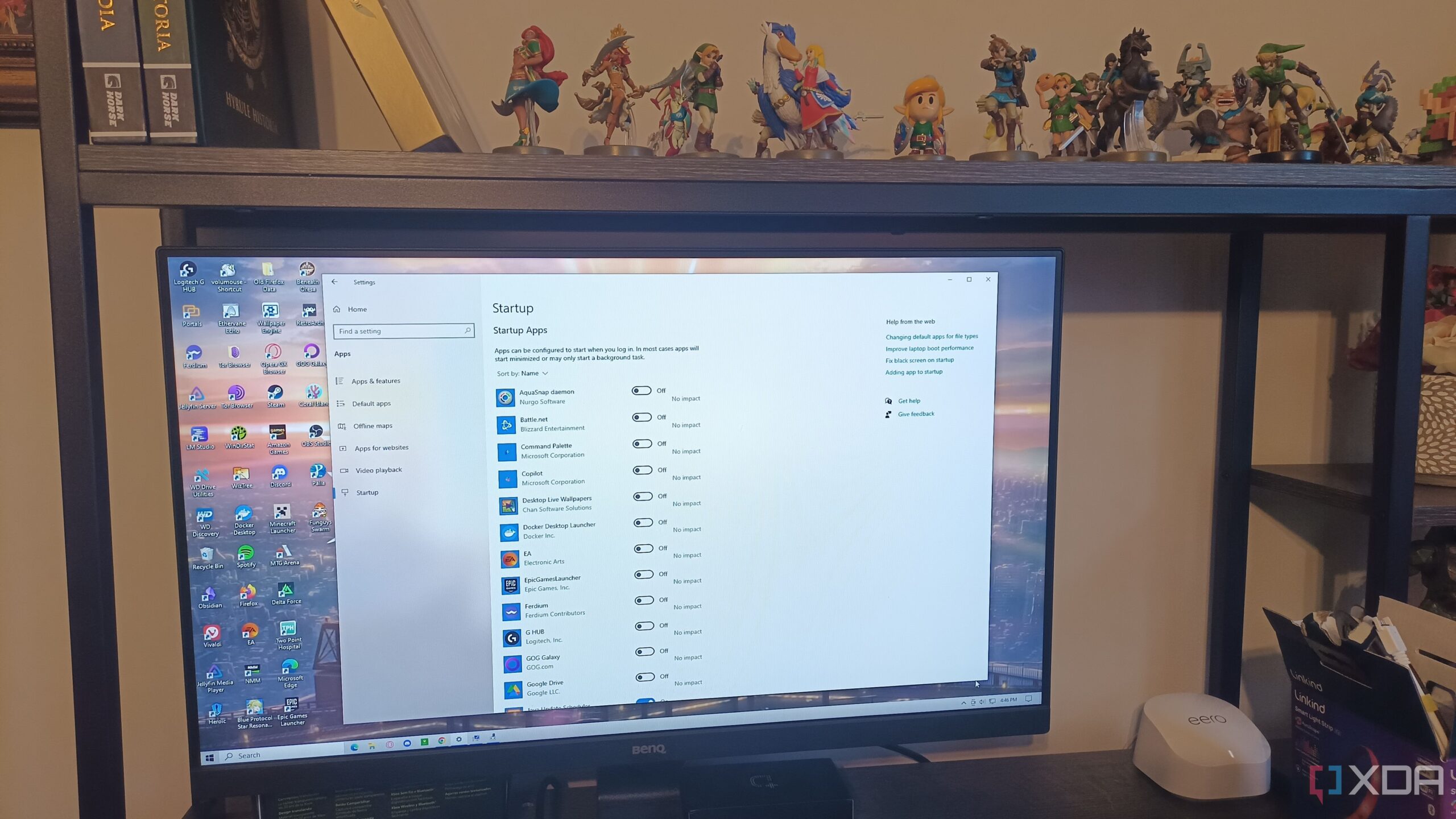
1. Disable Startup Apps
Every time you boot your computer, unnecessary applications often start automatically, slowing your system’s performance. By disabling these startup apps, you can streamline your boot process and enhance overall responsiveness. Navigate to the Task Manager and uncheck unwanted programs to reclaim valuable resources.
2. Turn Off Background Apps
Some applications continue to run in the background, consuming system resources even when you’re not using them. Access Settings -> Privacy -> Background Apps to toggle off any non-essential applications. This simple step can free up memory and improve speed, especially on older devices.
3. Enable High Performance Mode
Windows 10 includes several power settings, with a High Performance Mode option designed to maximize speed. While this setting consumes more energy, the boost in performance can be crucial for users still relying on older hardware. Find this setting under Settings -> Power & Sleep -> Additional Power Settings.
4. Disable Optional System Visuals
While visual effects can enhance the user experience, they can also drain resources on older systems. Access the Advanced System Settings and choose to adjust for best performance, which will turn off unnecessary effects while retaining visuals that improve text clarity.
5. Unplug Power Saving on USB Devices
Windows can automatically turn off USB devices to save power, which can lead to connectivity issues. To maintain reliable connections, go to Device Manager -> USB Serial Bus Controllers, right-click each device, and uncheck “Allow the computer to turn this device off to save power.”
6. Uninstall Bloatware
Pre-installed software, often referred to as bloatware, can take up unnecessary space and slow down your system. Identify and remove applications you don’t use, such as the 3D Viewer or Xbox app, to free up resources and improve performance.
These tweaks are not just minor adjustments; they can breathe new life into your Windows 10 system, making it feel faster and more responsive immediately. With the end of support here, now is the time to take action.
As millions continue to rely on Windows 10, these steps could be the difference between a sluggish system and a smoothly operating machine. Share this information with fellow Windows users, and help them optimize their experience today!