






































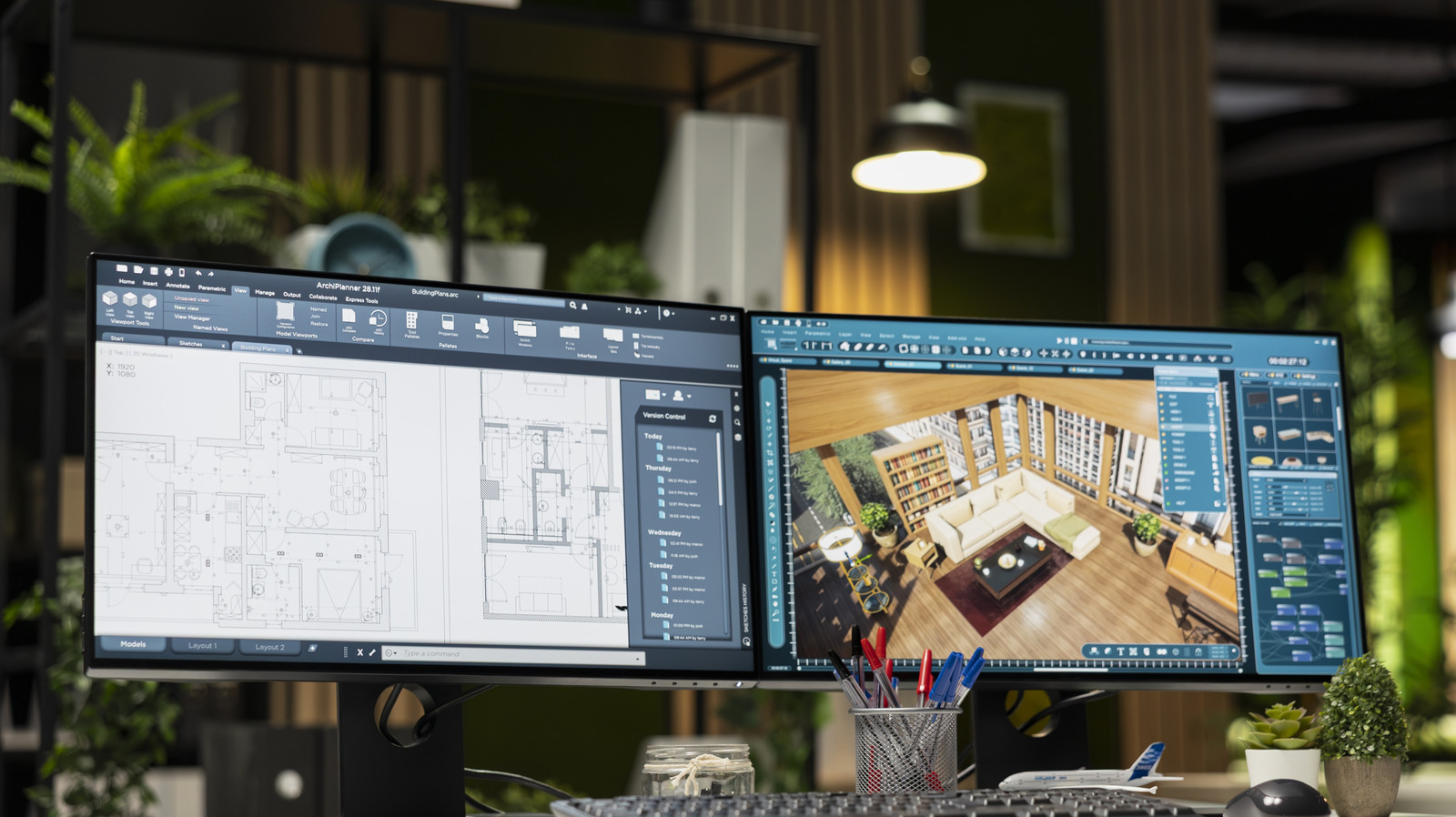
The rise of dual monitor setups has transformed how people work, enhancing multitasking capabilities and productivity. However, many users continue to experience configuration issues that hinder their effectiveness. Recognizing the signs that indicate your dual monitors are not properly set up can help streamline your workflow and improve your overall computing experience.
Common Configuration Issues with Dual Monitors
Despite the mainstream acceptance of dual monitor setups, misconfigurations can occur. Here are nine common signs that suggest something may be amiss, along with solutions to address each issue.
One of the most frequent problems is having only one monitor functioning. This situation often arises at inopportune moments, such as during presentations. To resolve this, begin by checking the connection of your second monitor. Ensure it is plugged into the correct port on the dedicated graphics card rather than the motherboard’s HDMI port. If using a USB-C adapter, verify that it supports DisplayPort “Alt” mode, as not all USB ports provide this capability.
Another typical issue is display arrangement mismatches. Computers often misinterpret the physical arrangement of monitors, leading to confusion when moving windows between screens. This problem can be rectified through the display settings in Windows, macOS, or Linux. Adjust the virtual arrangement to match the physical setup, ensuring that all monitors are set to the desired resolution to maintain consistency.
Users may also notice that one monitor feels laggy compared to the other. This discrepancy often results from differing refresh rates. For a smoother experience, set both monitors to the highest refresh rate supported by both displays. This adjustment minimizes the jarring effects of switching between screens.
Additionally, ensuring that both monitors are connected to the same graphics processing unit (GPU) is crucial. If a second GPU is active, it may lead to performance issues, particularly when running demanding applications such as video games. Always connect monitors to the GPU you intend to use for optimal performance.
Addressing UI Scaling and Color Calibration
UI scaling can also present challenges, particularly with monitors of differing resolutions. Inconsistent scaling can lead to text and icons appearing too small or disproportionately large. Windows allows users to customize scaling settings under System > Display, enabling adjustments to achieve a unified appearance across monitors.
Color and brightness discrepancies are another concern. Even monitors from the same production batch can exhibit differences in color accuracy and contrast. Calibrating monitors using built-in wizards or third-party applications can help achieve a more visually cohesive setup. Although precise calibration tools are available, basic adjustments through software can deliver satisfactory results without significant investment.
For gamers, connecting a second monitor may inadvertently reduce gaming performance. Running applications like web browsers or chat programs alongside a game can impact frame rates. Testing game performance with only the primary monitor connected can help identify whether the second display is causing issues. In cases where performance is affected, consider connecting the second monitor to a separate GPU if available.
Another common frustration is managing the mouse pointer across multiple screens. Users often find the pointer gets stuck or behaves unexpectedly when moving between monitors. Matching the virtual arrangement to the physical layout can alleviate this issue, but users may also consider adjusting the arrangement for intuitive mouse movement.
Finally, some applications, including video games, may fail to open on the designated primary monitor. Users can rectify this by using keyboard shortcuts, such as Win+Shift along with the arrow keys, to move applications between monitors. Additionally, many modern games offer settings to select the desired display within their options menu.
By recognizing and addressing these common issues, users can significantly enhance their dual monitor experience. The evolution of multi-monitor setups has made them a standard part of modern computing, and with proper configuration, they can greatly improve productivity and comfort in work and gaming environments.